Mailgun email integration
Rossware programs allow Mailgun integration to streamline email configuration for sending confirmation requests, invoices, and more. Create a Mailgun account for your business to get started.
Mailgun account creation
Below are links you can use to learn more about your Mailgun account.
Create your Mailgun account here:
Retrieve your API key here:
Quick Start guide:
Mailgun DKIM security:
dashboard.rossware.com configuration
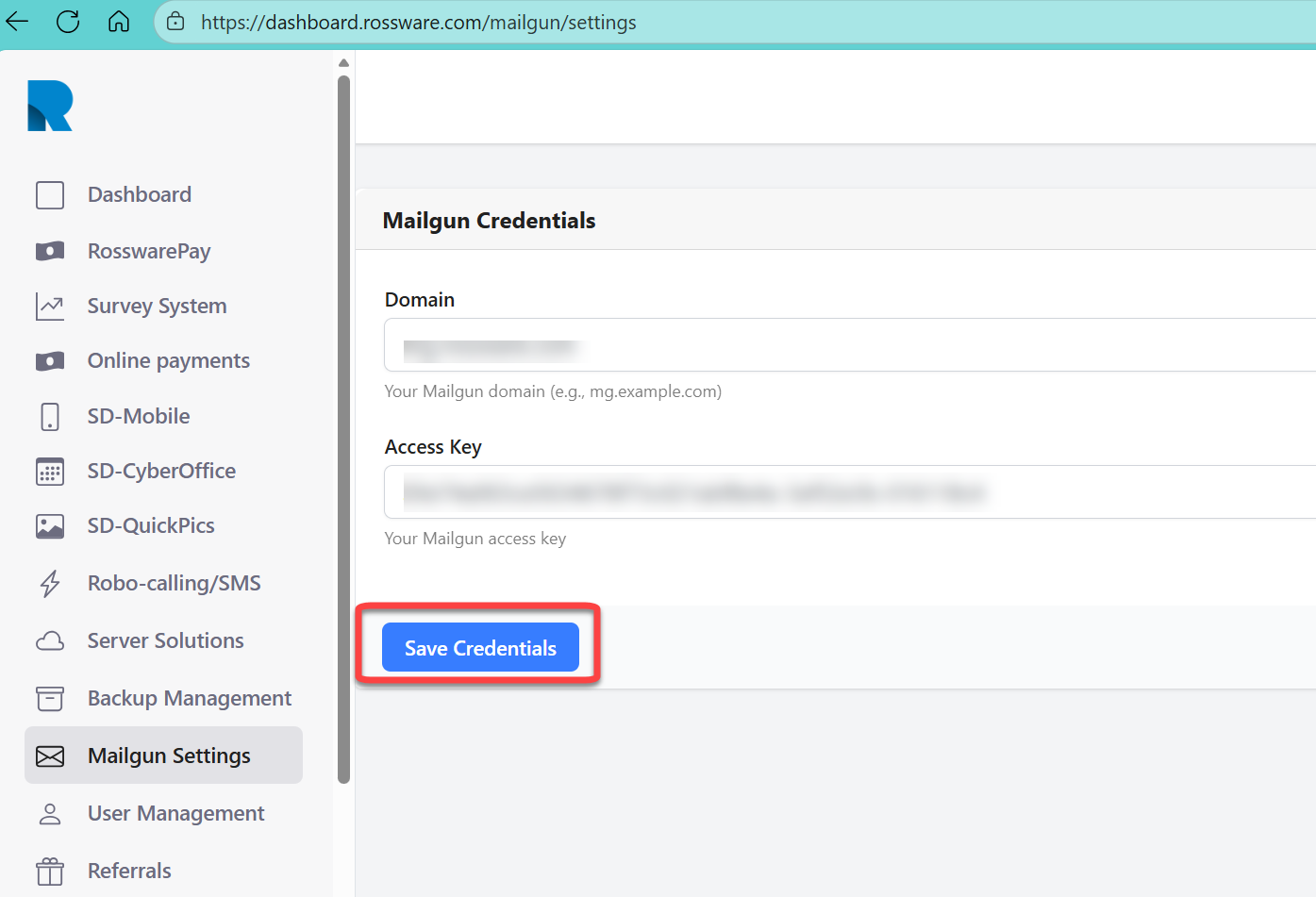
Login to dashboard.rossware.com.
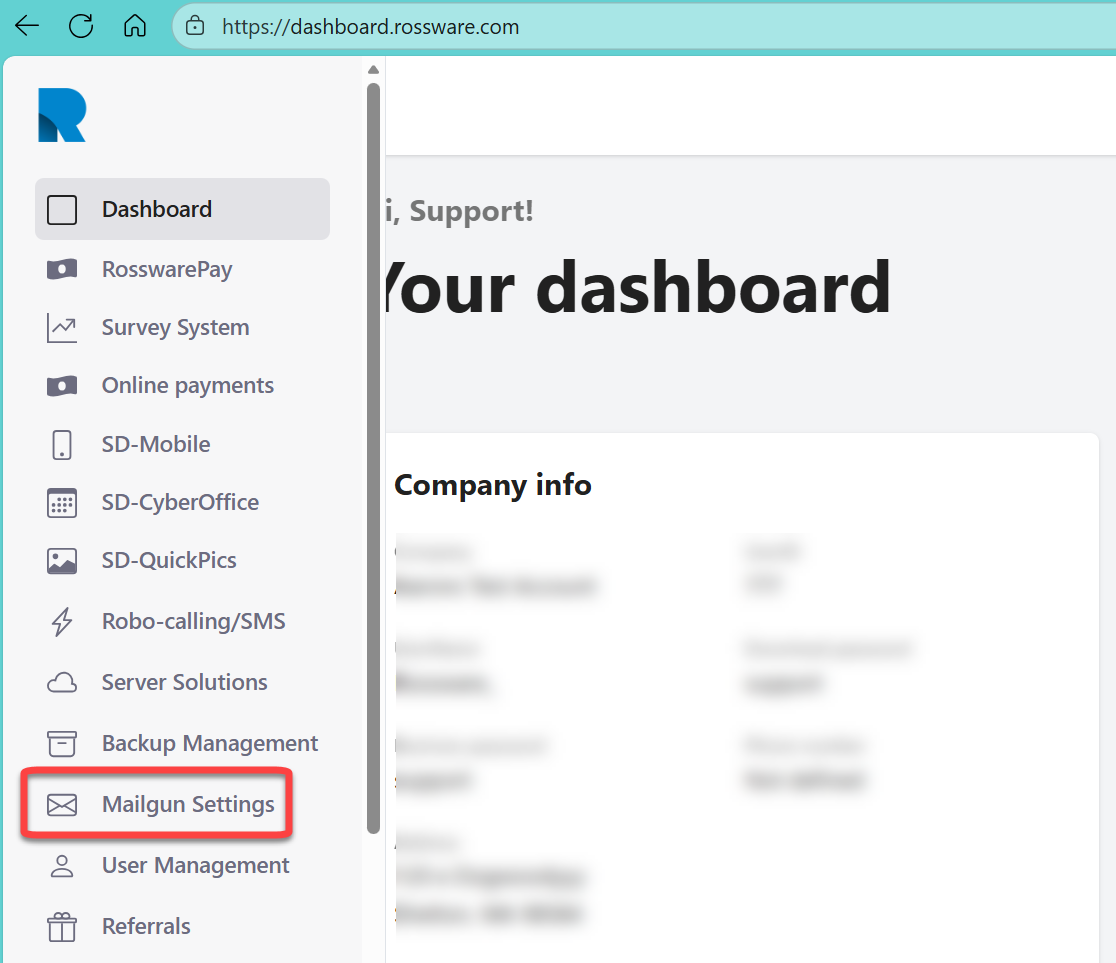
Navigate to the Mailgun Settings on the left navigation pane.
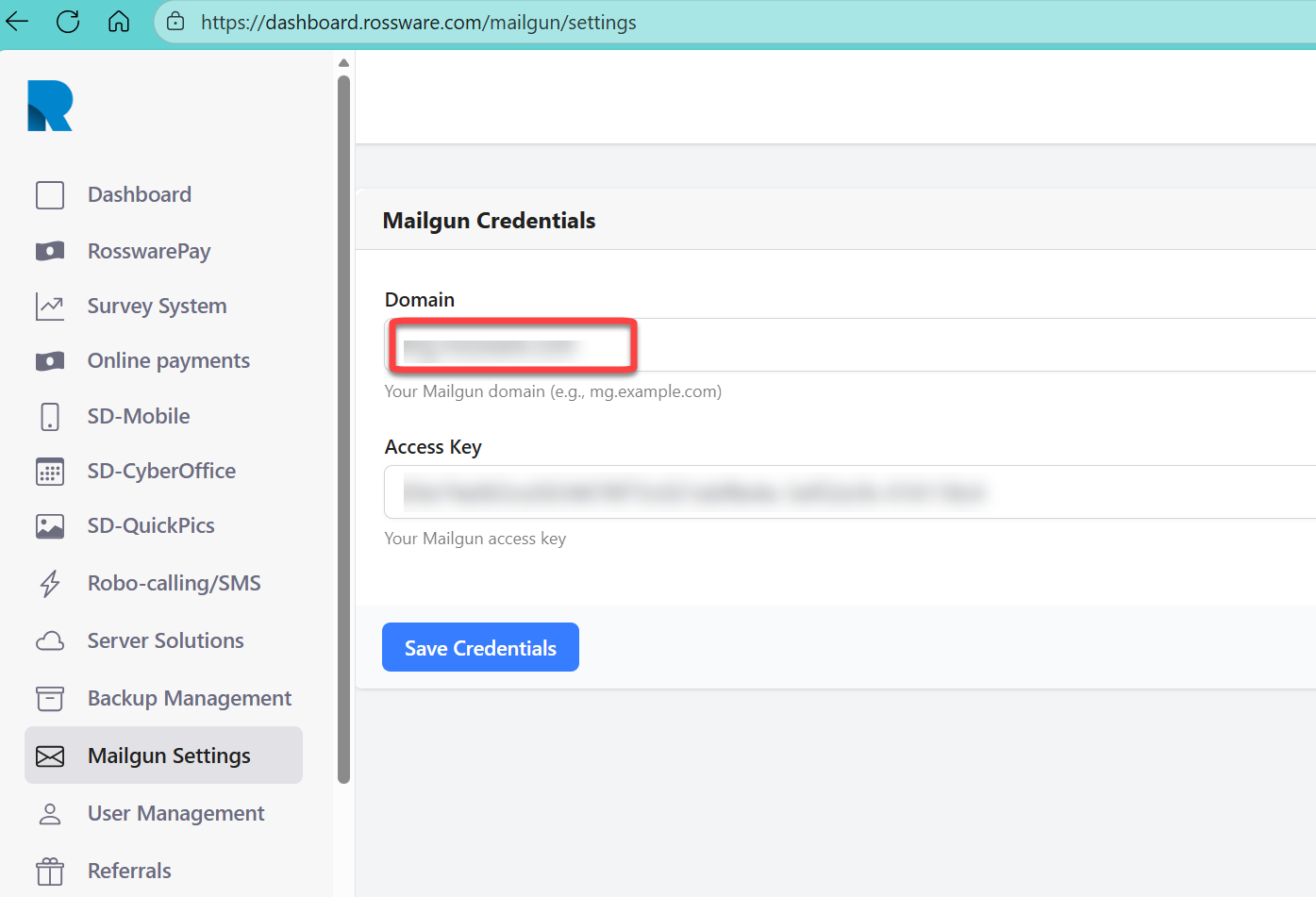
Enter your domain as present on Mailgun's site.
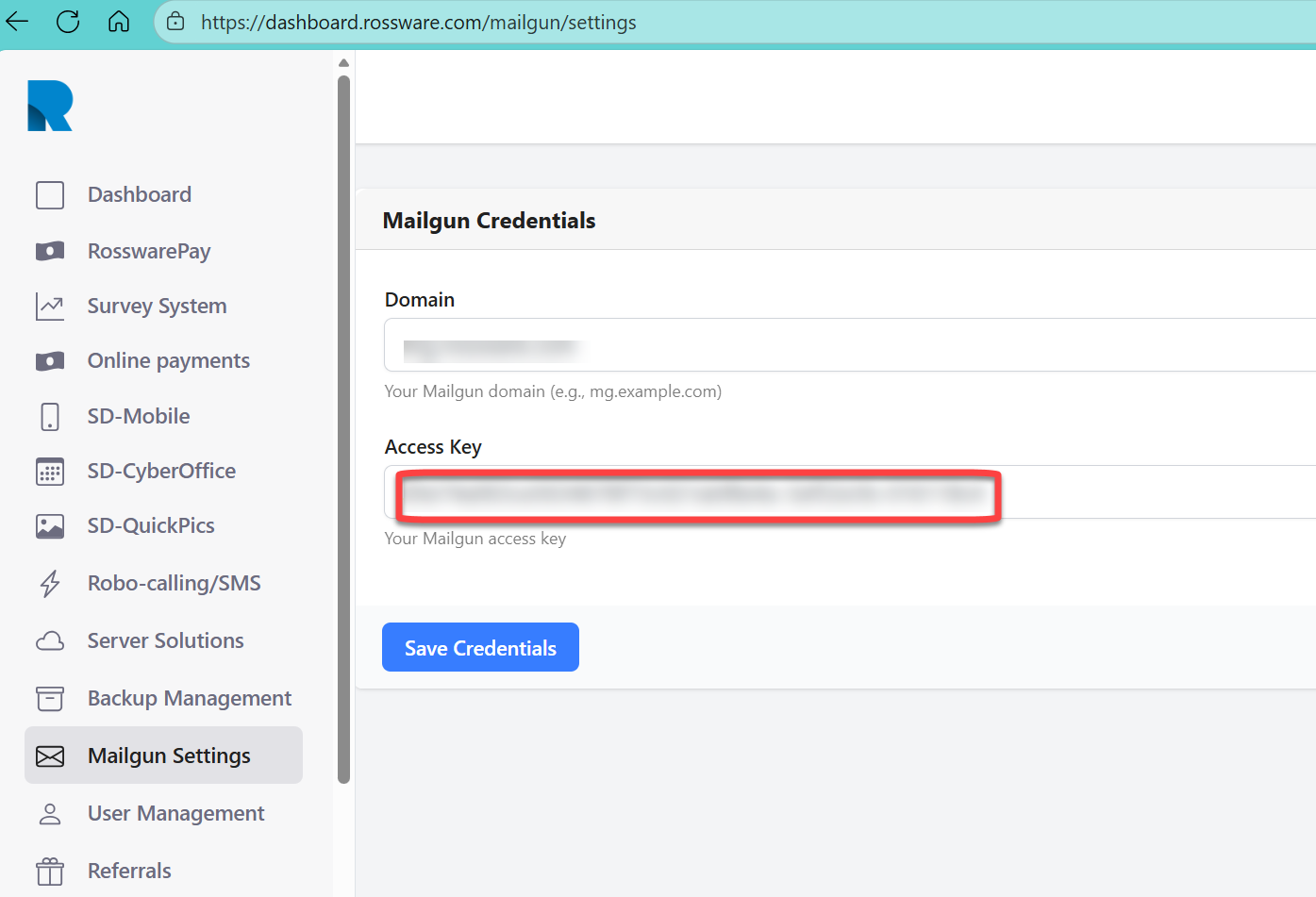
Enter your API Key from Mailgun's site.
Click on Save Credentials.
ServiceDesk integration
In ServiceDesk:
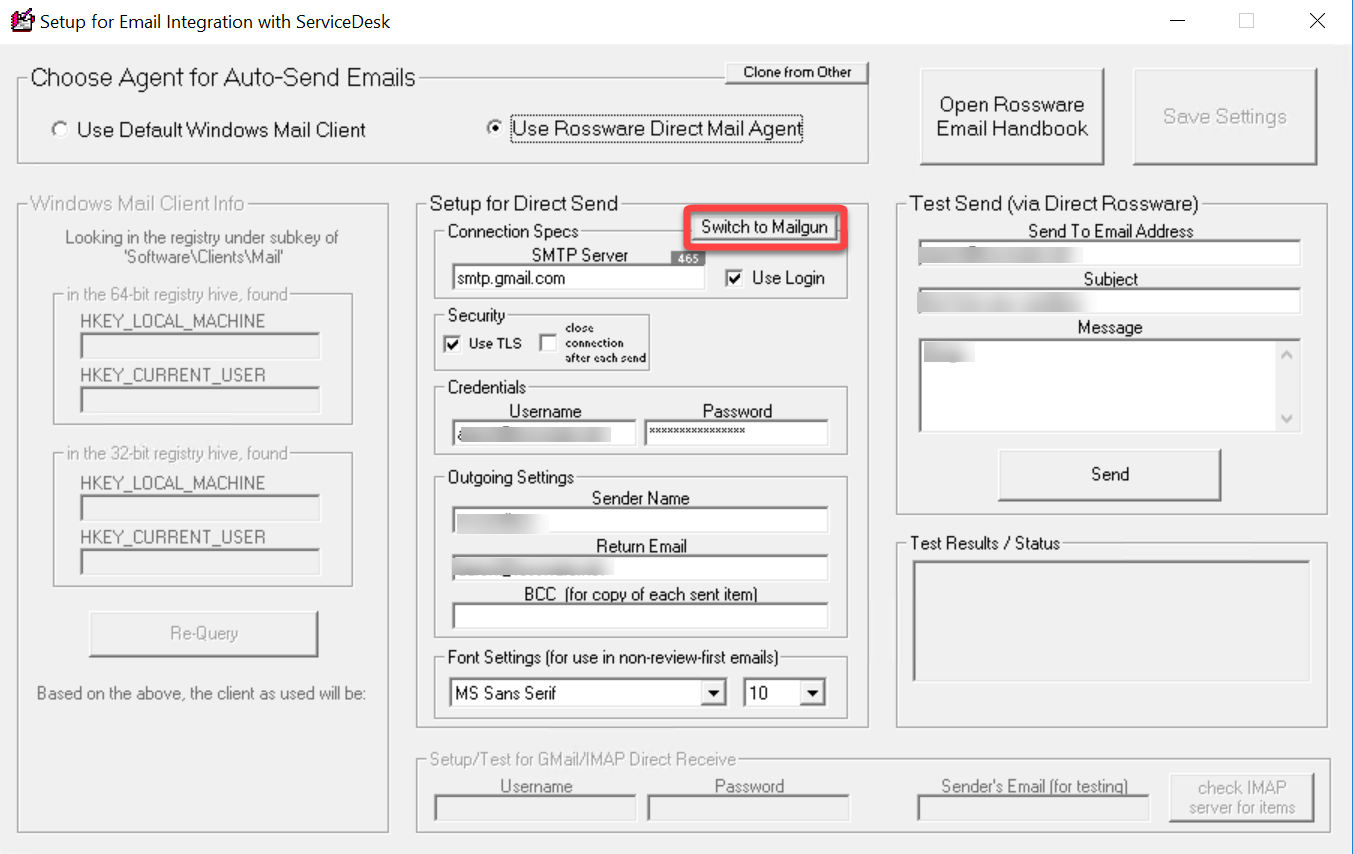
Navigate to your email settings form by clicking on File Functions and selecting Email Setup.
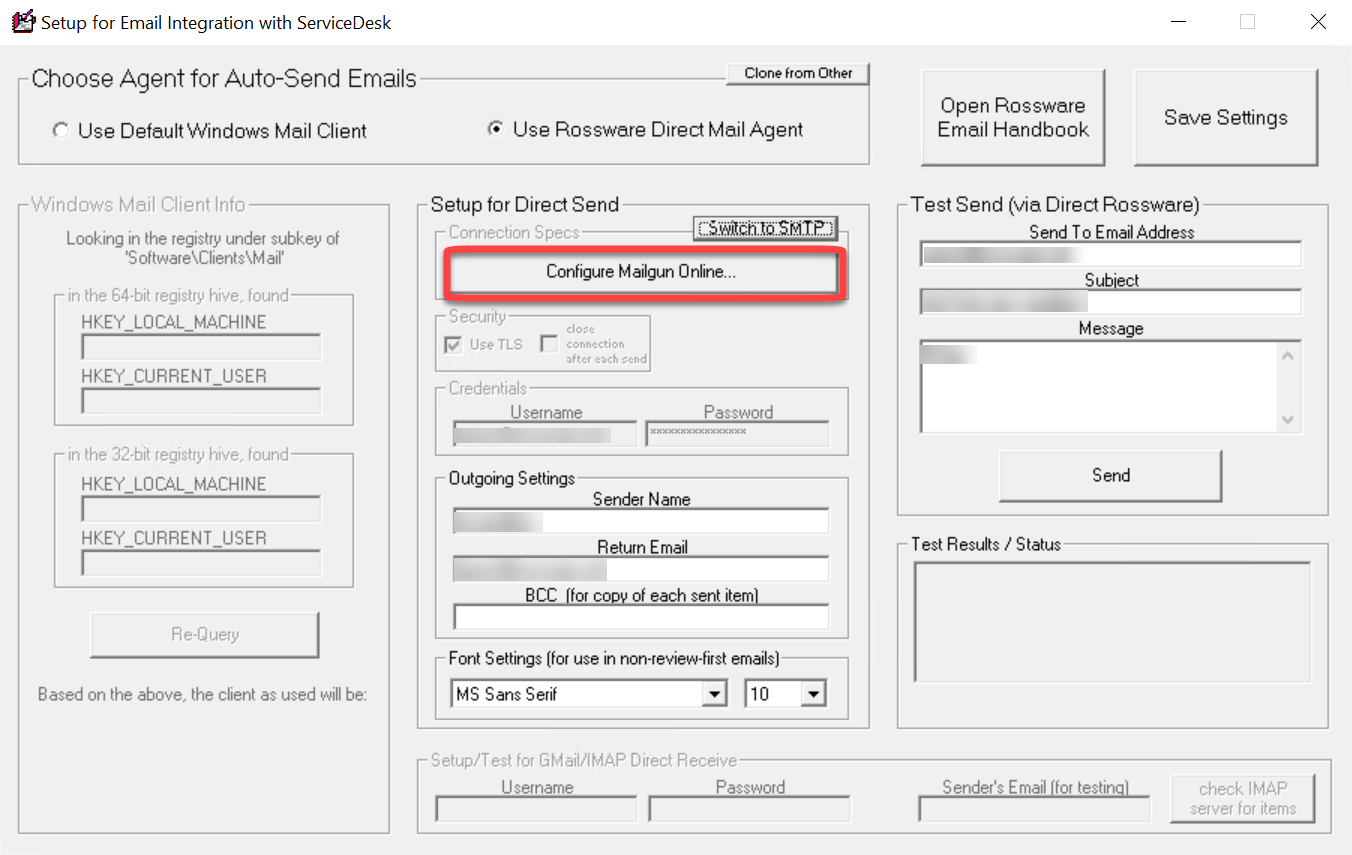
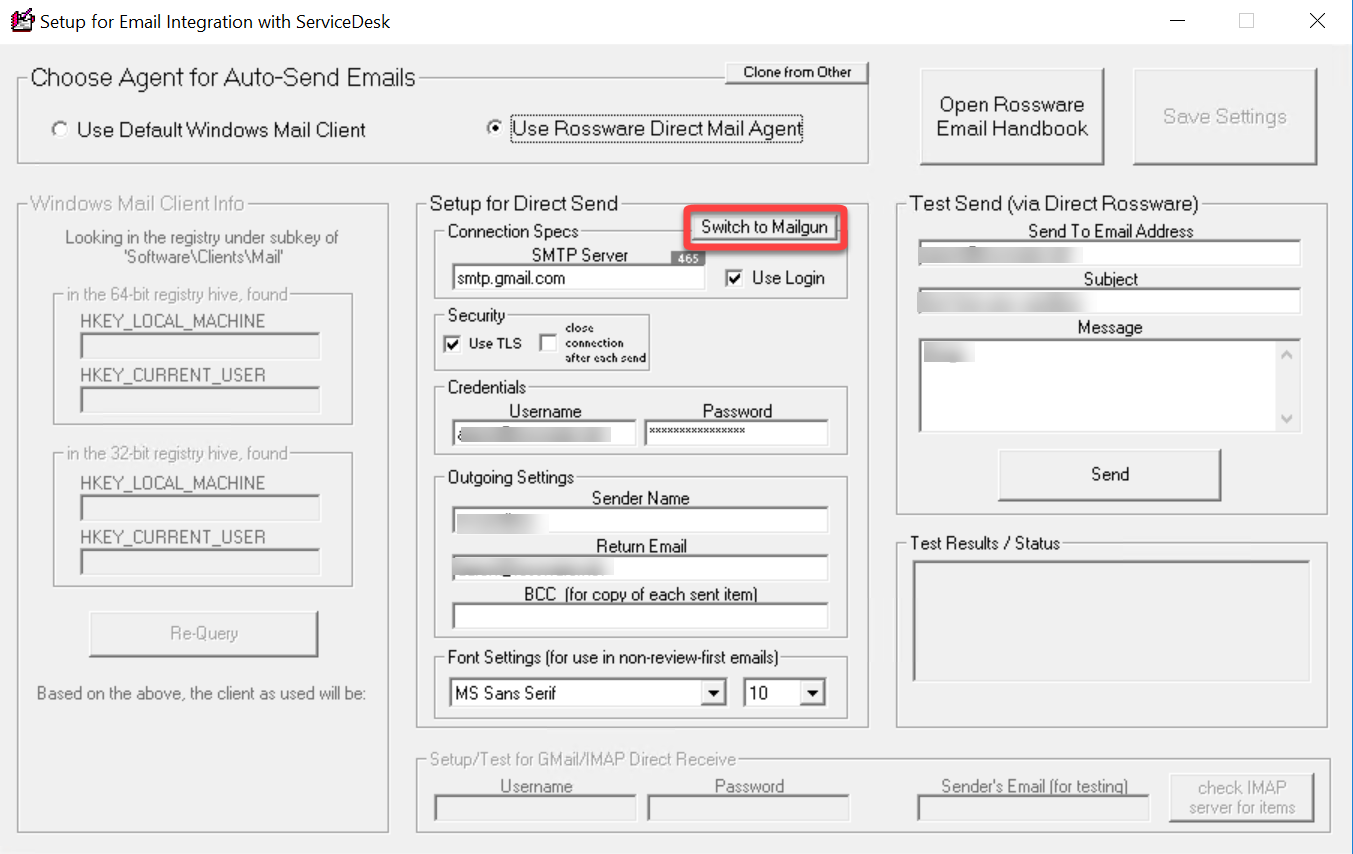
Select the Switch to Mailgun button.
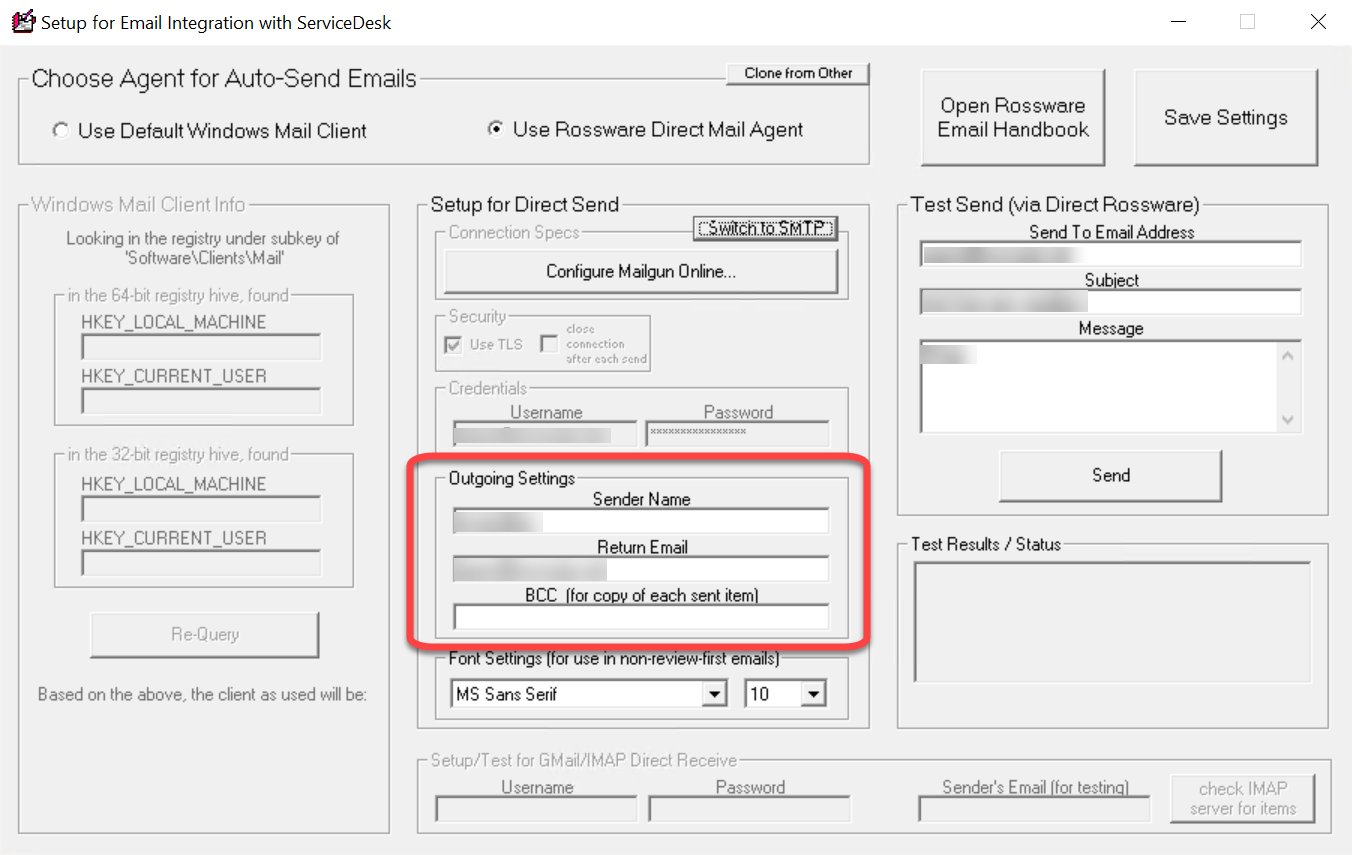
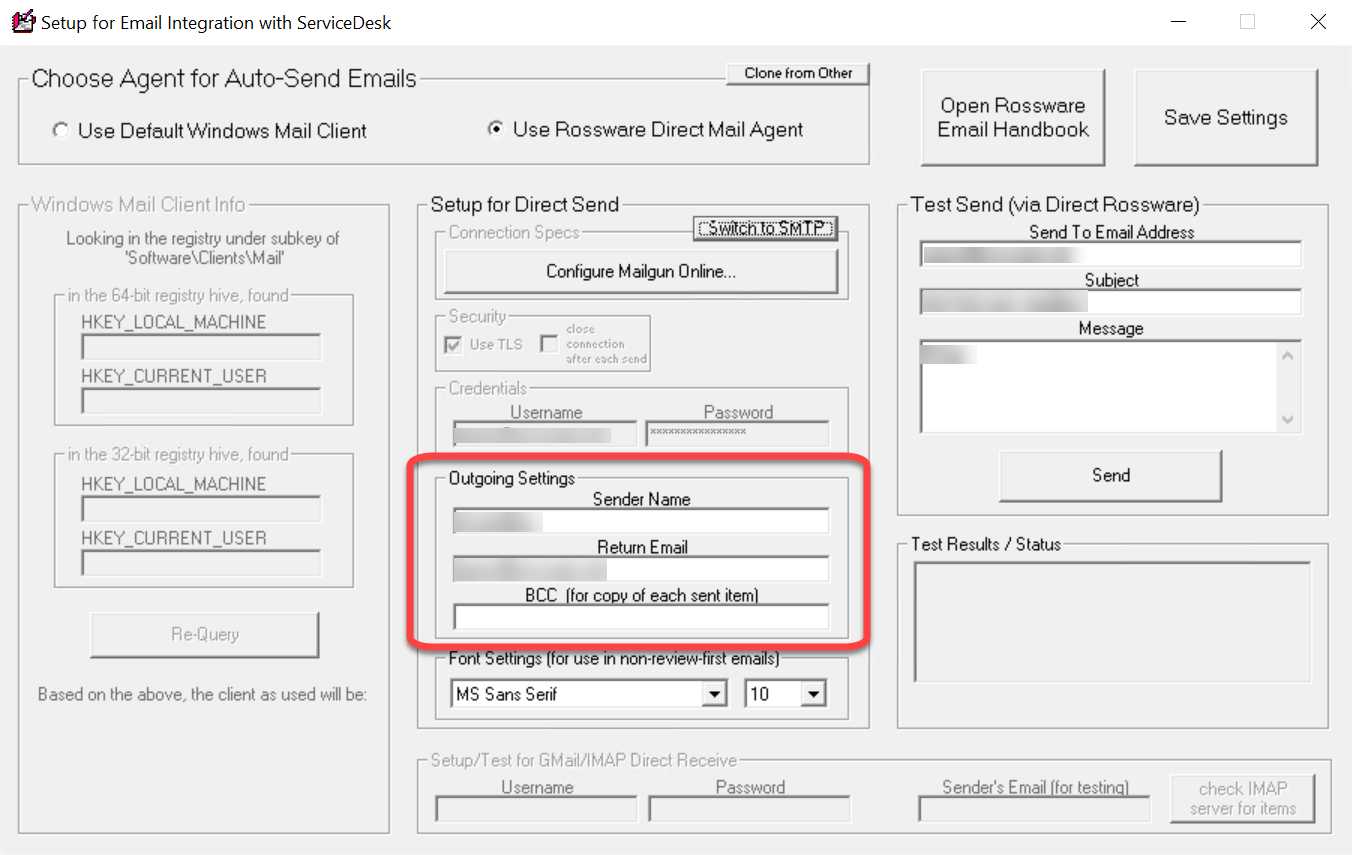
Enter your Sender Name and Return Email (and BCC if desired).
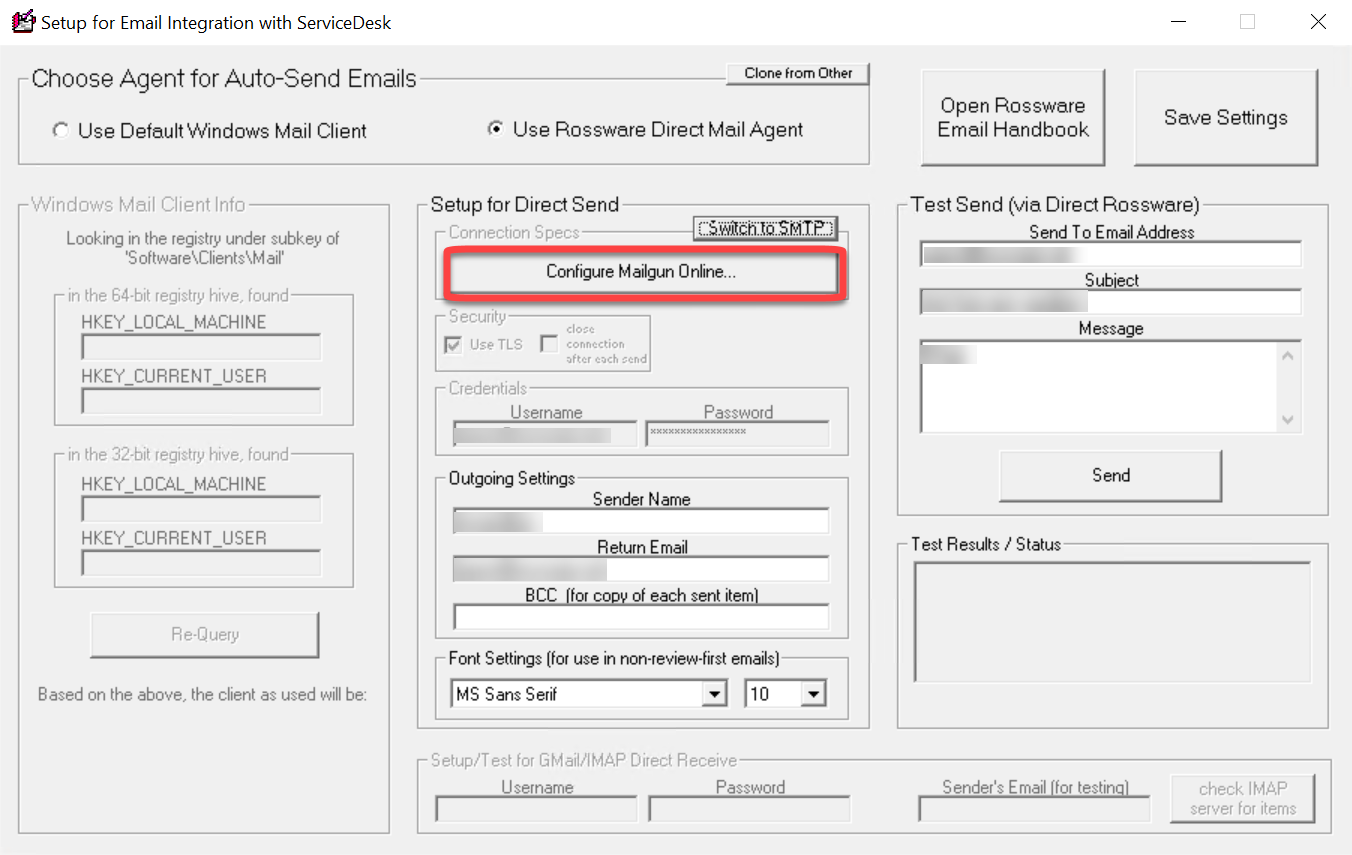
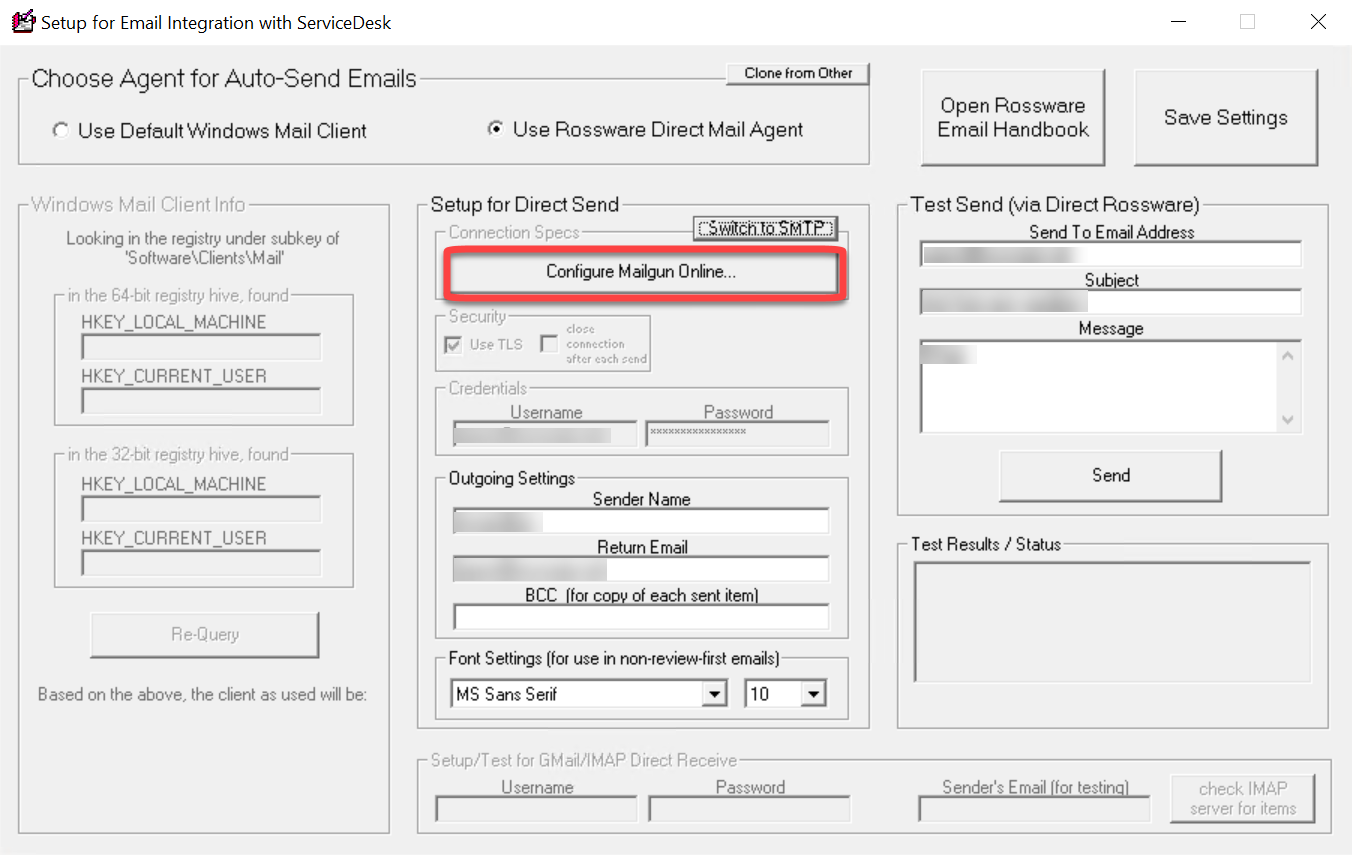
If you have not already configured your Mailgun account as outlined earlier in this article, please click on the Configure Mailgun Online button.
SD-MobileLink Integration
In SD-MobileLink:
Navigate to your email settings form by clicking on Email Setup button on the SDML user interface.
Select the Switch to Mailgun button.
Enter your Sender Name and Return Email (and BCC if desired).
If you have not already configured your Mailgun account as outlined earlier in this article, please click on the Configure Mailgun Online button.
SD-CyberLink Integration
In SD-MobileLink:
Navigate to your email settings form by clicking on Email Setup button on the SDCL user interface.
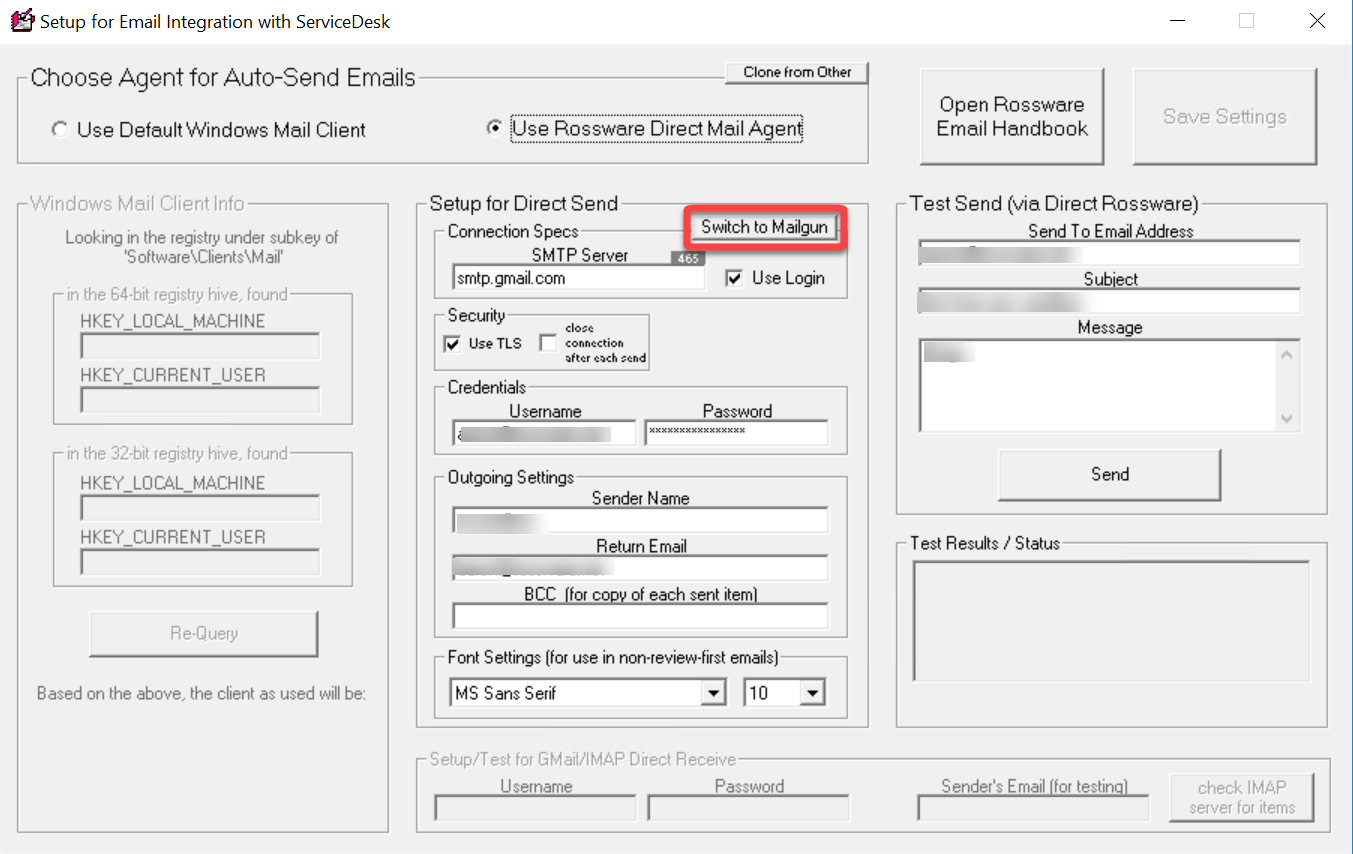
Select the Switch to Mailgun button.
Enter your Sender Name and Return Email (and BCC if desired).
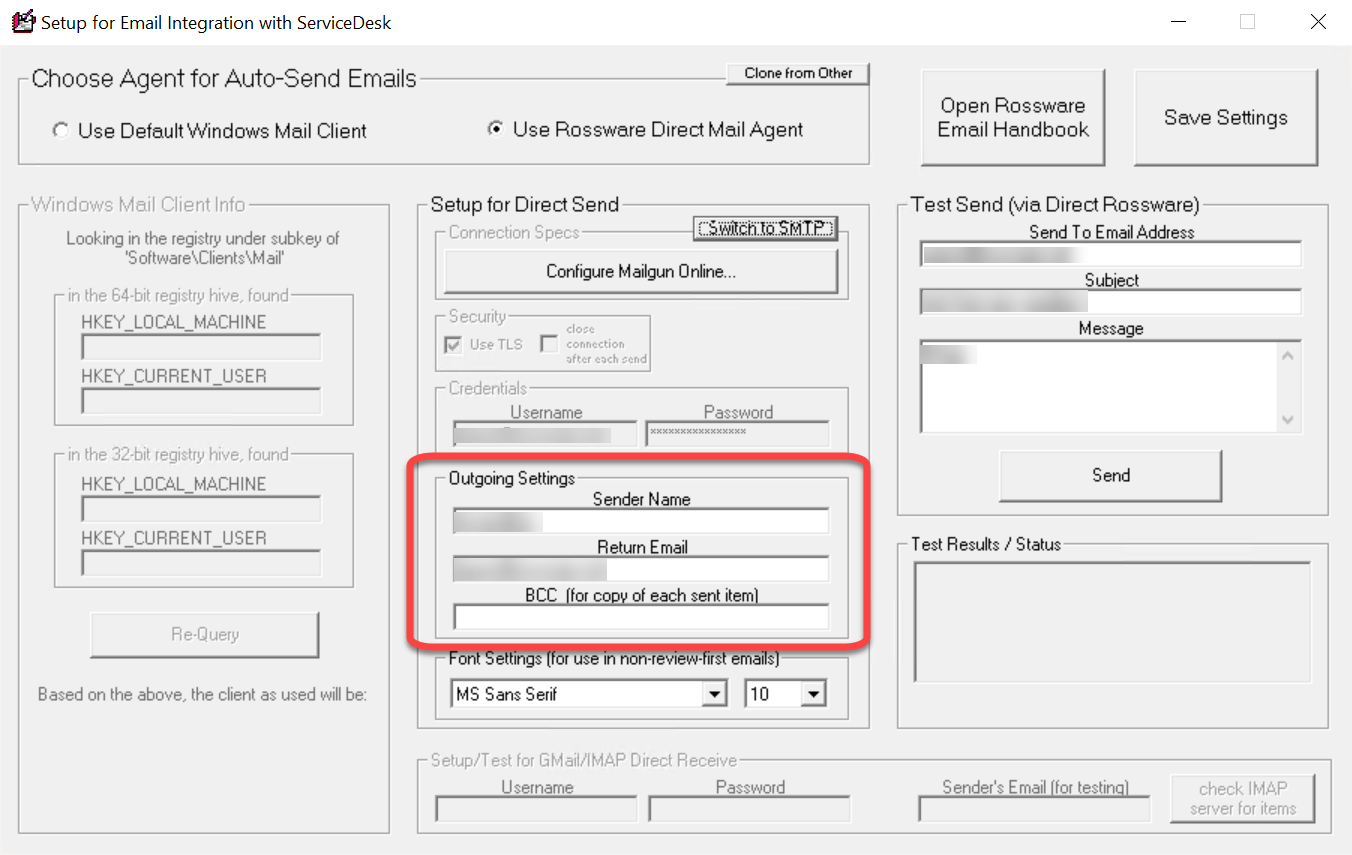
If you have not already configured your Mailgun account as outlined earlier in this article, please click on the Configure Mailgun Online button.